跳至内容

更多引擎功能

枢纽步骤

让玩家进行视觉选择。

本课目前仅提供英文版。

The Hub Step is a visual choice menu that lets players pick from a series of images. Think of it like a map, chapter select, or free-roam menu inside your episode.

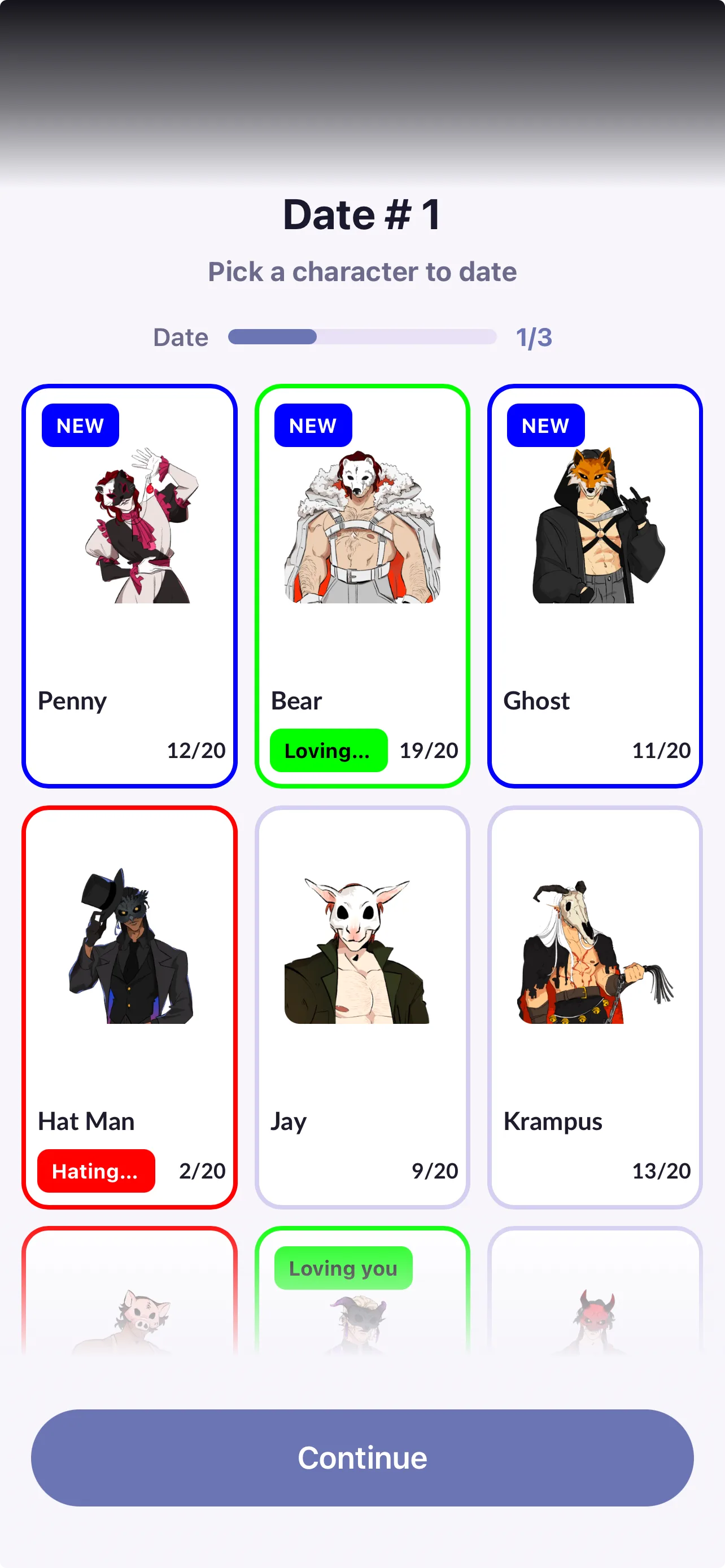
Player-facing Hub screen titled "Date #1" showing a grid of character cards with art, affection scores, status tags, and a Continue button.

This is an advanced feature that lets you add character art, labels, progress bars, and optional status tags. Every part of it is fully customizable.

What the player sees

A Hub can include:

  • Multiple selectable options (characters, locations, activities, etc.)
  • Character images or thumbnails
  • Progress bars (example: Date 1/3, Investigation 2/5)
  • Status labels/tags (example: "New", these are completely customizable)
  • A continue button to keep playing without selecting any of the options above

This makes Hub Steps especially powerful if you want your players to revisit characters or complete content in a flexible order.

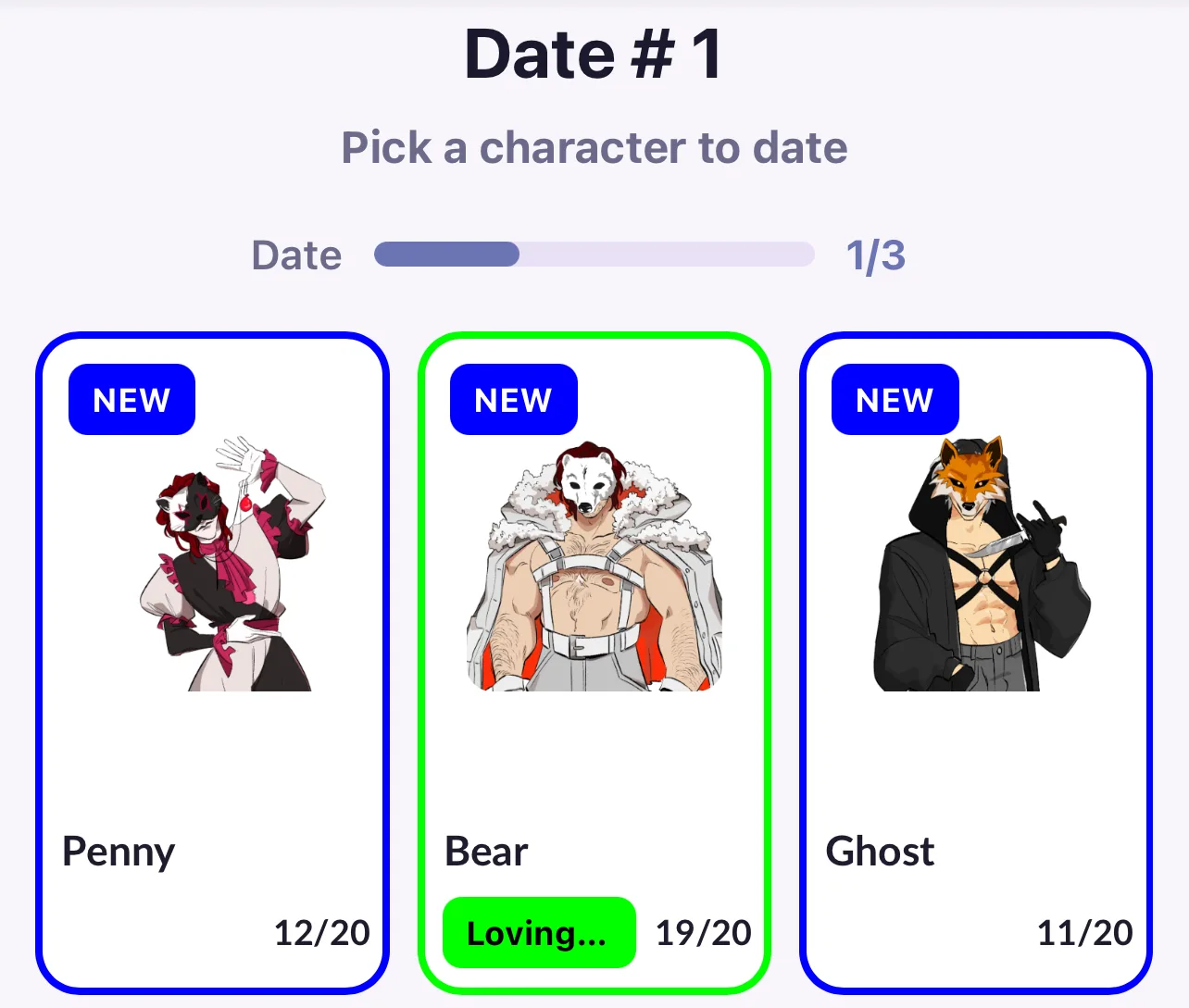
Close-up of three Hub character cards (Penny, Bear, Ghost) showing thumbnails, affection scores out of 20, and status labels.

For each hub, you can define:

  • Header
  • Subheader
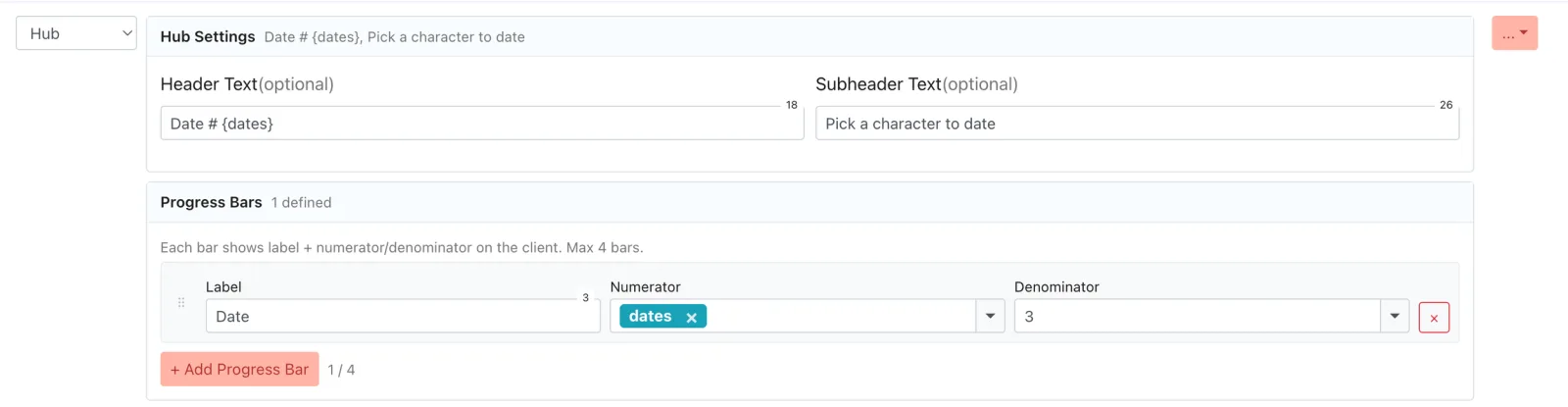
  • Progress bar: You can enter numbers or use existing variables from your memory bank.

How it works in the engine

In the engine, each Hub Option functions like a branching choice that leads the player to a different node.

Engine Hub Settings panel with Header Text and Subheader Text fields and a Progress Bars section showing label, numerator, and denominator inputs.

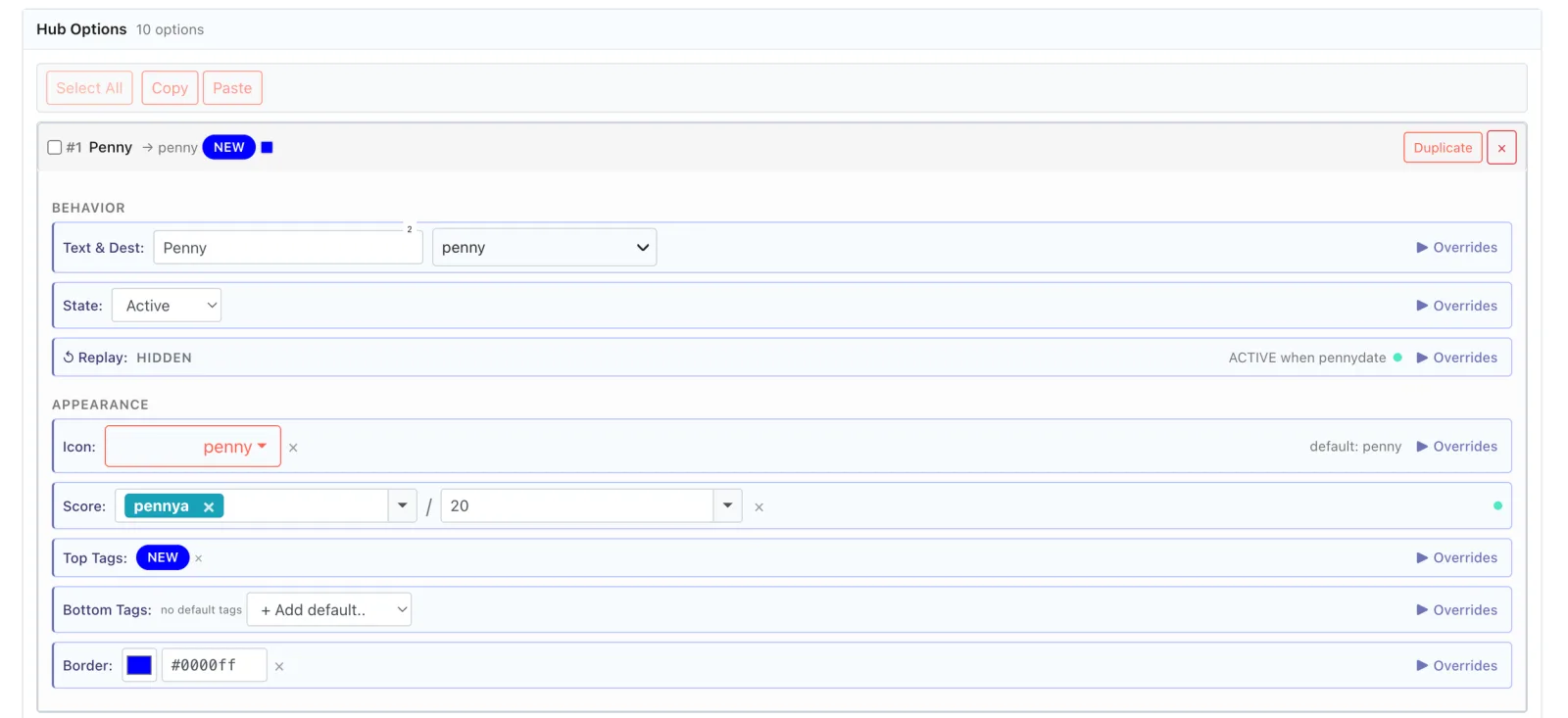
For each option, you can define:

  • Text shown to players
  • Destination node: Defines the node that option leads to.
  • State: Active, Hidden, or Disabled.
  • Replay button: Allows players to replay the same option when returning to the hub. This can be customized to lead to a different node the second time a player clicks on it within the same playthrough.
  • Thumbnail image
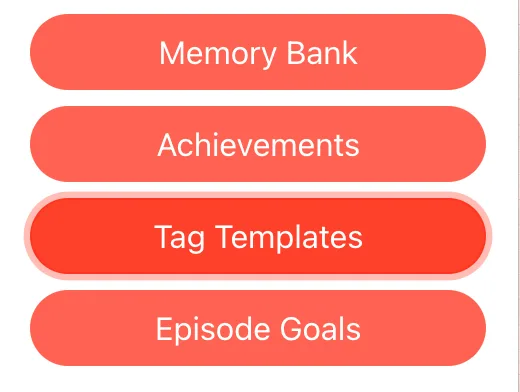
  • Tags: Small labels displayed at the top or bottom of each option. To use tags, you need to create them separately in Tag Templates.
  • Score: Tracks a player's progress based on customizable variables.
  • Border: Defines the color of the border of each option.
  • Overrides: Show, hide, or lock any of the above options based on any variable.
Episode menu list with Memory Bank, Achievements, Tag Templates, and Episode Goals options, with Tag Templates highlighted.
Engine Hub Options editor for a single option, showing Behavior settings (Text & Dest, State, Replay) and Appearance settings (Icon, Score, Tags, Border) with Overrides links.

How to use Overrides

When using Overrides, your options are endless. Here is a simple example that demonstrates their purpose. Remember: you can apply this to every detail of your hub.

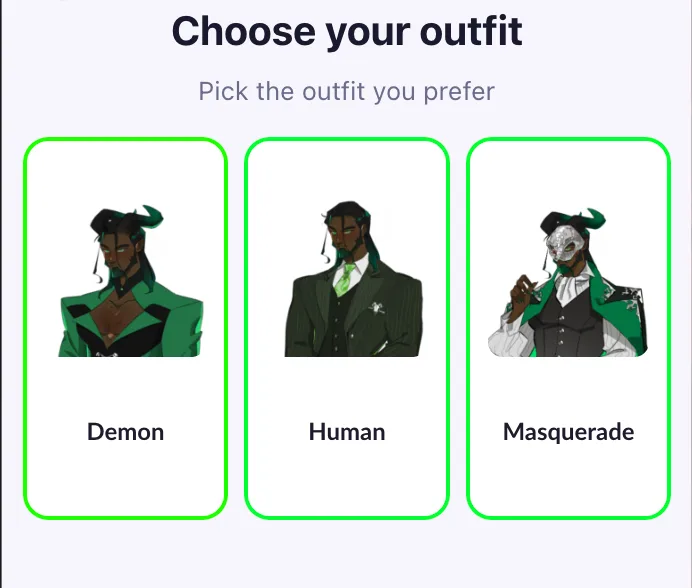
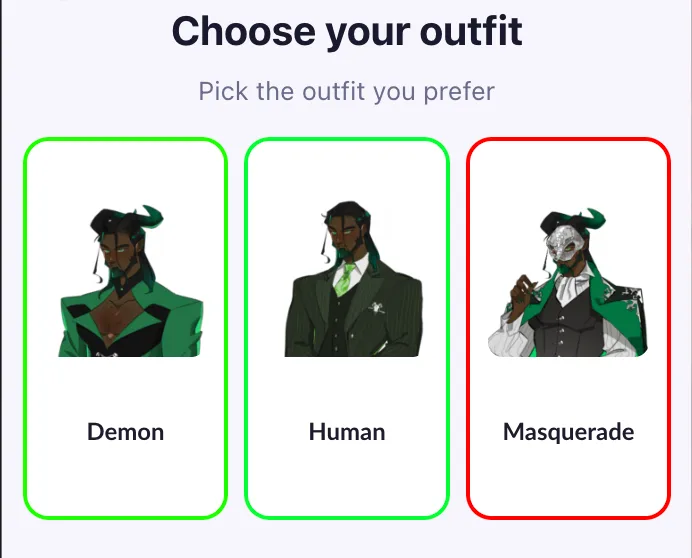
Player-facing "Choose your outfit" Hub screen with three green-bordered cards labelled Demon, Human, and Masquerade.
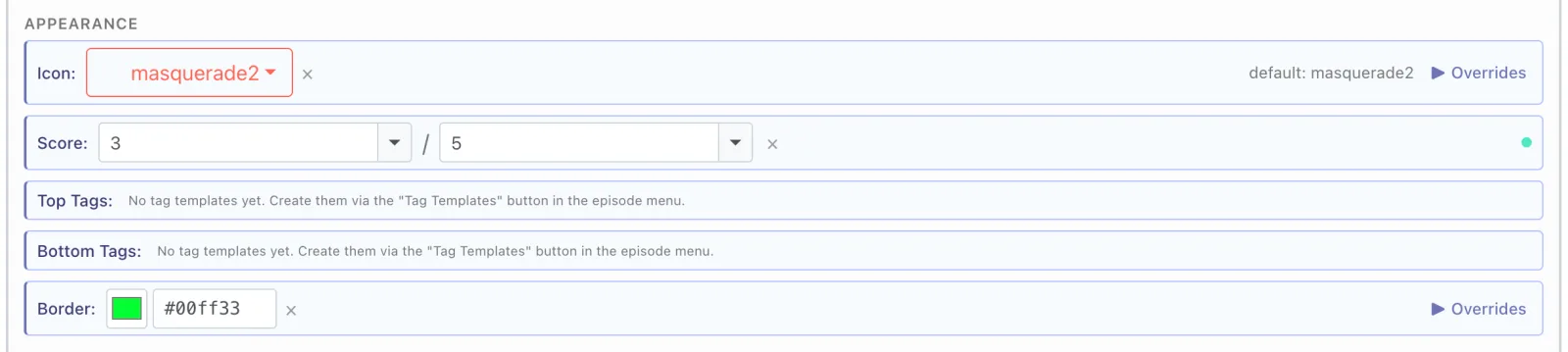
  1. Set a green border for each option.
Engine Appearance settings for a Hub option with the Border field set to green (#00ff33).
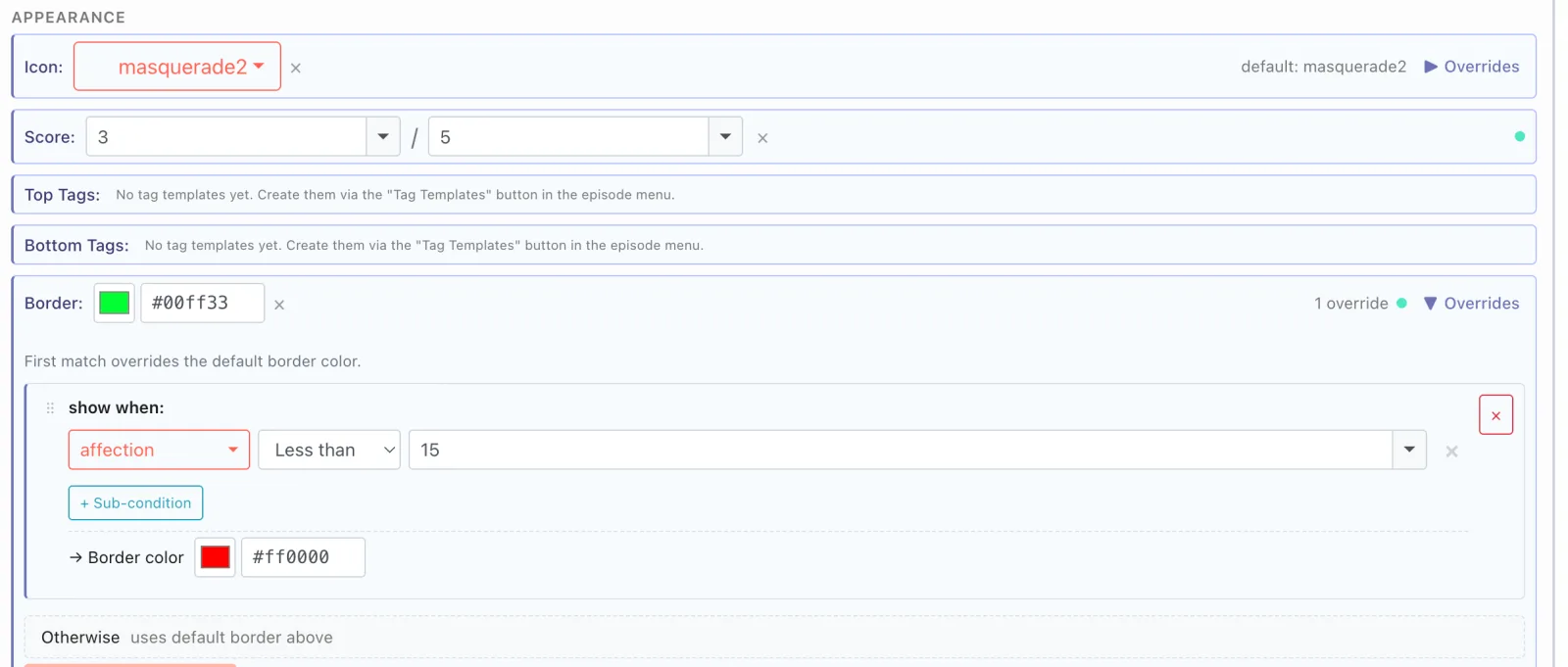
  1. Set an override so that players with less than 15 affection points will see a red border on the masquerade option.
Engine Appearance panel with the Border override expanded: a "show when affection is Less than 15" condition that sets the border color to red (#ff0000).
Player-facing "Choose your outfit" Hub where the Masquerade card now shows a red border while Demon and Human stay green, the override result.

This process can be used to customize every element of your hub, from the appearance of an option, to the node it leads to, or whether it is visible to specific players.

⚠️ Beta Feature Notice This feature is currently in beta and may have limitations or unexpected behavior.

Please note:

  • It is not currently supported by the Text Importer. Setup must be done manually in the engine.
  • Premium Options are not currently supported within this feature.
  • We strongly recommend testing your game directly in the app, as the engine emulator has limited capabilities and may not accurately reflect the final player experience.
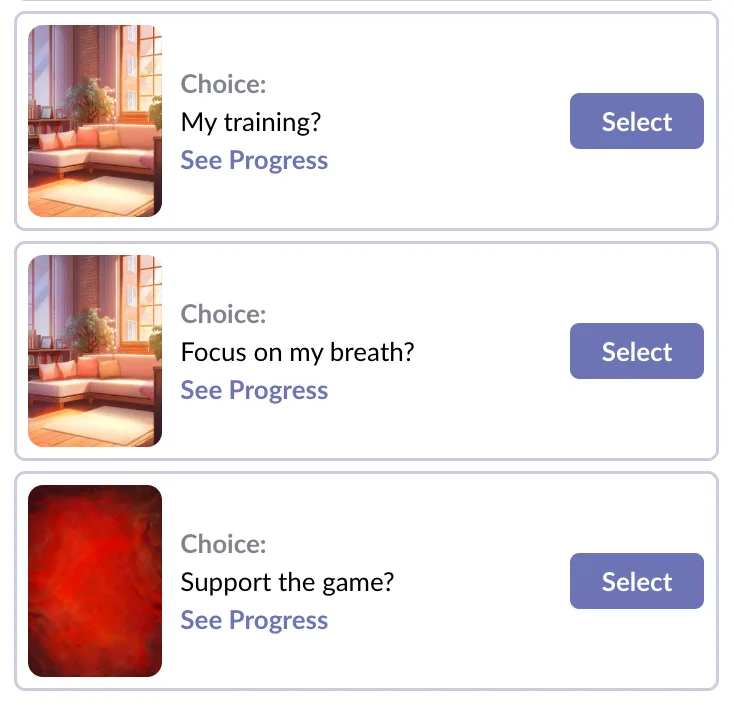
  • Unlike regular choices, players will not see hubs in their replay menu.
Player replay menu listing regular choices, each with a thumbnail, a "See Progress" link, and a Select button; Hub Steps do not appear here.
  • As with all beta features, we expect functionality to change over time based on feedback.