Mais recursos da ferramenta
Importador de texto
Importe seu texto em massa e preencha previamente os nós com personagens, escolhas e conexões.
Por enquanto, esta aula está disponível em inglês.
IN THIS LESSON
Bring Your Story to Life: Import Your Content with Ease!
You can bulk-import your text and pre-populate nodes with characters, choices, and connections! Here's how. Download the template to get started.

Why Import Your Text?
Importing your script directly into our platform can speed up your creation process by 10x. No more copy-pasting line by line, just import, tweak, and you're ready to roll!

Building Your Script
You don't have to have your script finished to import it! After importing nodes, you can import additional ones anytime you want!
- You must use a sheet. You cannot use a simple word doc. This is because the importer reads the different columns as different data.
- You must add your locations and characters to the engine before importing if you want these to connect appropriately.

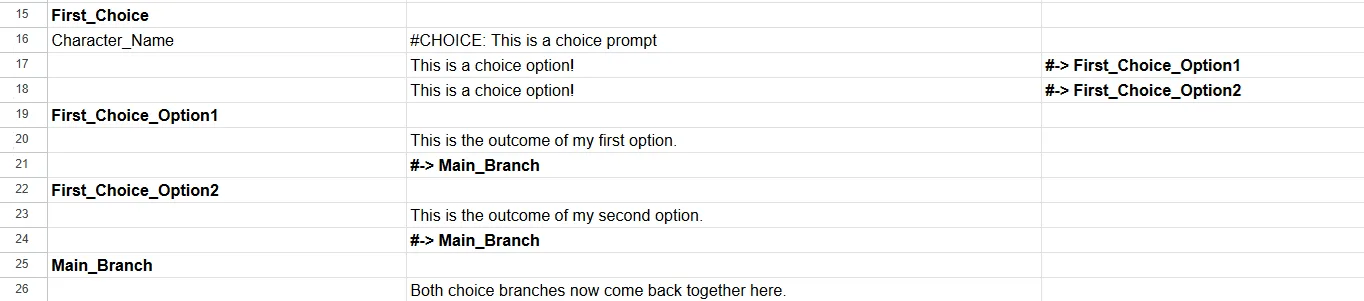
To create a choice, start a new node:

- Add a character in column A. This character will appear on the choice screen.
- In column B add
#CHOICE:with the text for the prompt. This can be no longer than 40 characters. - Add at least 1 option and no more than 3 in column B under this.
- In column C next to the options, write
#-> node_namefor where you want this choice to lead. - Then, create new nodes for what happens after these choices.
- At the end of each branch, set up a
#->that tells it where to go next!
To make a choice cost money, simply change the line to say #premium with a number (how many hearts). You can add #bonus if you want it to include a highlight.


Using Choice Memory
Remember, you will need access to choice memory for this to work. If you don't have it already, apply for access.

To remember that a memory is being changed, simply write a #remember line that changes an existing memory from your Memory Bank.

You can also check your character score and branch based off of it using the language:
#check: if [MEMORY] > number, if yes goto [nodename1], if no [nodename2]You can check the memory is greater (>), lesser (<), or exactly (=).
#check: max [MEMORY1] [MEMORY2] [MEMORY3], if [MEMORY1] goto [nodename1], if [MEMORY2] goto [nodename2], if [MEMORY3] goto [nodename3]
Importing Your Script
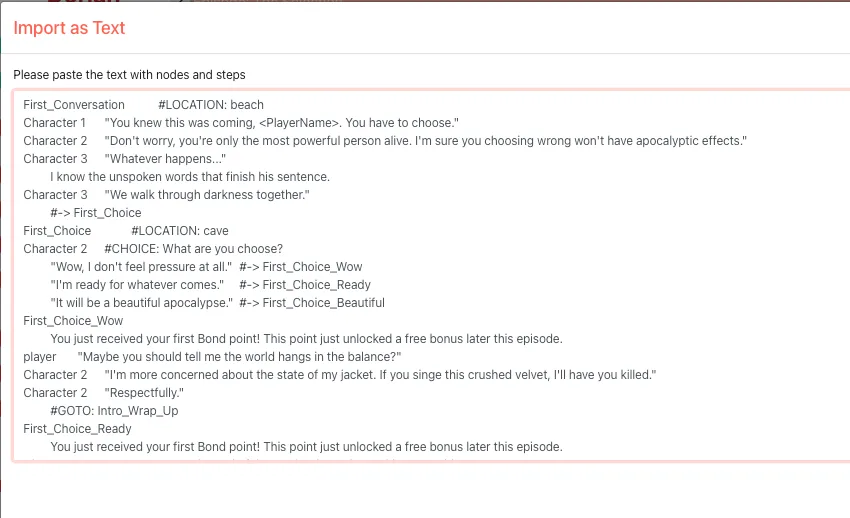
When you click "import as text," a new window will appear. Copy and paste the contents of your spreadsheet there.
Click validate. If you have made any errors in your importer, your script will tell you by highlighting the cell in red. Hover over the i icon to understand what you did wrong.